Pomodoro for Studying: A Setup That Tracks Every Subject
Most advice on using the pomodoro technique for studying stops at “set a timer for 25 minutes”. The harder question comes at the end of the week: did chemistry get the hours you planned, or did you keep reaching for the subject you already like? This guide shows how to study with pomodoro so that the answer is on record: one task per subject, a revision day planned in sessions, and a short weekly check. The examples use Tallydial, a free pomodoro timer that records time per task in your browser. The method itself began as a student's trick: Francesco Cirillo came up with it at university in the late 1980s.
Why short focus blocks suit studying
There is nothing special about 25 minutes, and no timer makes a hard subject easy. Short blocks help with studying for a few practical reasons:
- Starting is easier. “Revise organic chemistry” has no end. “Work on reaction mechanisms until the timer rings” does, which makes it easier to begin with the subject you've been putting off.
- You get regular stopping points. Every session ends with a decision: stay on this subject, or switch. Without them, an afternoon tends to slide into one topic, or into your phone.
- Breaks come on a schedule. Instead of working until you run out of steam and calling it a day, you stop for five minutes every half hour and come back.
- The count is honest. Four hours at the desk and four completed pomodoros (an hour and forty minutes of focus) are different things, and a timer that records sessions shows you which one you had.
A timer is not a study plan. It won't tell you what to revise or how; that is still up to you, your syllabus and your teachers. It makes the time you spend visible, so you can see whether the plan is happening.
Make each subject a task, each course a project tag
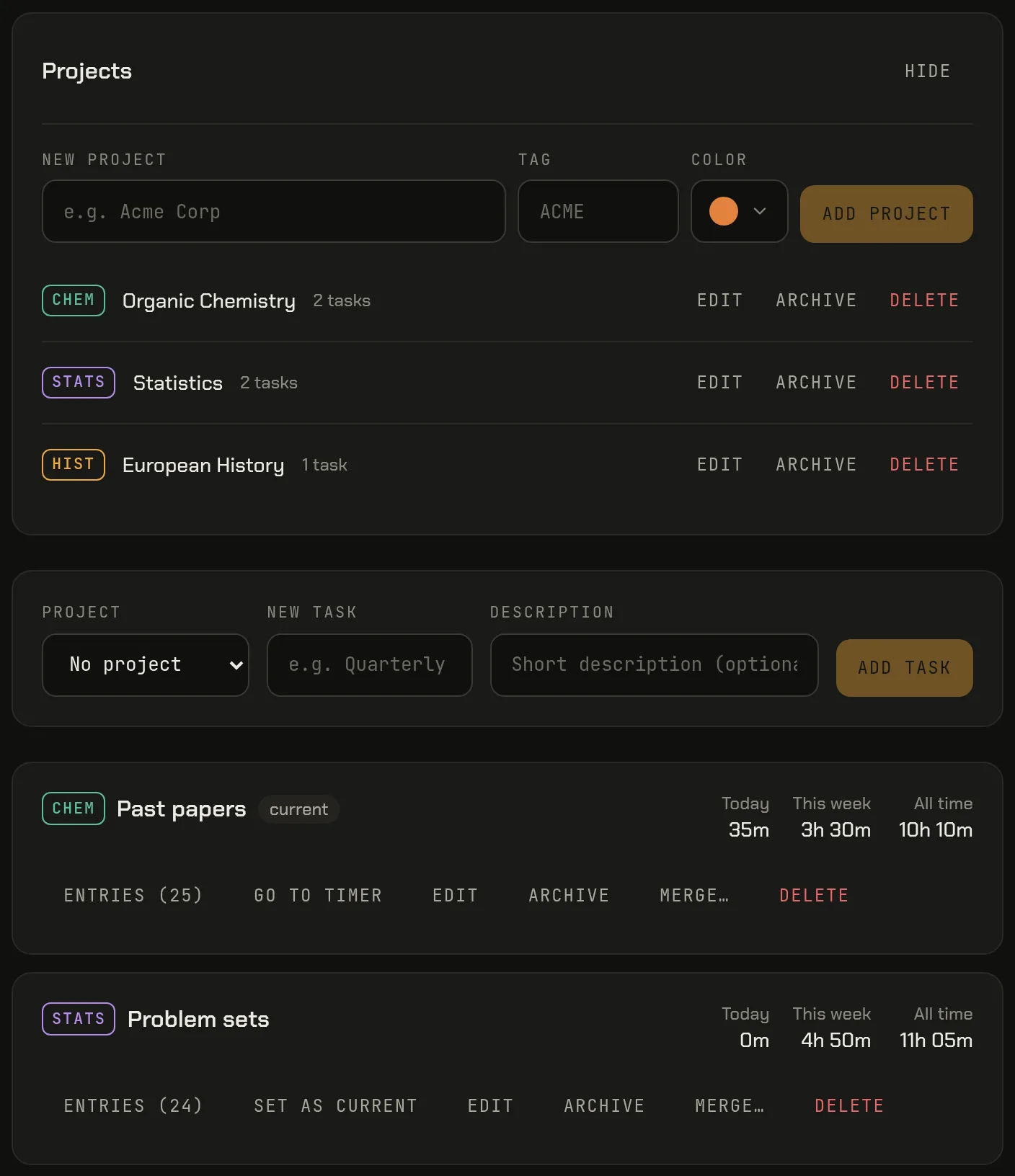
Set this up once, at the start of a term or a revision period. Open Tasks, type a name in the New task field and press Add task. With the subjects added up front, each one is ready to pick before a session.
How fine to go depends on what you study:
- A handful of subjects (school exams, a language, a certification): one task per subject. “Biology”, “Chemistry”, “History” and “Maths” are enough, and you don't need projects.
- University courses that break into parts: make each course a project and give it tasks for the kinds of work it involves. In the Projects card, choose Add a project (Manage once you have one), enter a name like “Organic Chemistry”, a tag like CHEM, and a color. Then choose that project in the Project field when you add its tasks: “Lecture notes”, “Problem sets”, “Past papers”.
A tag is a short label: one word of up to eight characters, shown in capitals (type “CHEM 201” and only CHEM is kept). Leave it empty and the first word of the project name is used. The tag appears as a colored badge in front of the task name on Today and the Tasks page, so “CHEM Past papers” and “STATS Past papers” stay apart even with the same name. The reports show the task name alone, with its bar in the course's color.
A few habits keep the reports readable:
- One task per subject, not per day. A task collects time across the whole term, and the reports split it by day for you.
- No catch-all “Study” task. It hides the one thing you set this up to see: which subject got the time.
- Adding a task mid-session is fine. New task on Today adds one and selects it, without a project; give it its course later with Edit on the Tasks page.
- Archive, don't delete. When a course ends, Archive its tasks. They leave the list you pick from but keep their time in the reports.
Plan a revision day in pomodoros
A pomodoro study plan counts sessions, not hours. “Study all day” is a hope; “eight pomodoros: three chemistry, three statistics, two history” is a plan you can check at 6 p.m. Eight 25-minute sessions are 3 hours 20 minutes of focus.
- List the subjects for the day and decide how many sessions each gets. Plan fewer than you think will fit.
- Put the subject you're most likely to skip first, before the day fills up.
- Where you can, give a subject two sessions in a row, so you aren't switching every 25 minutes.
- Write one line per session saying what you'll do in it: “10 mechanism questions, chapter 4”, not “chemistry”.
Here is that day with the default settings (25-minute focus, 5-minute short break, a 15-minute long break after every four sessions):
| Time | Session | Task |
|---|---|---|
| 09:00 – 09:25 | 1 | CHEM Past papers |
| 09:30 – 09:55 | 2 | CHEM Past papers |
| 10:00 – 10:25 | 3 | STATS Problem sets |
| 10:30 – 10:55 | 4 | STATS Problem sets |
| 10:55 – 11:10 | Long break | |
| 11:10 – 11:35 | 5 | HIST Lecture notes |
| 11:40 – 12:05 | 6 | HIST Lecture notes |
| 12:05 – 13:00 | Lunch | |
| 13:00 – 13:25 | 7 | CHEM Reaction mechanisms |
| 13:30 – 13:55 | 8 | STATS Past papers |
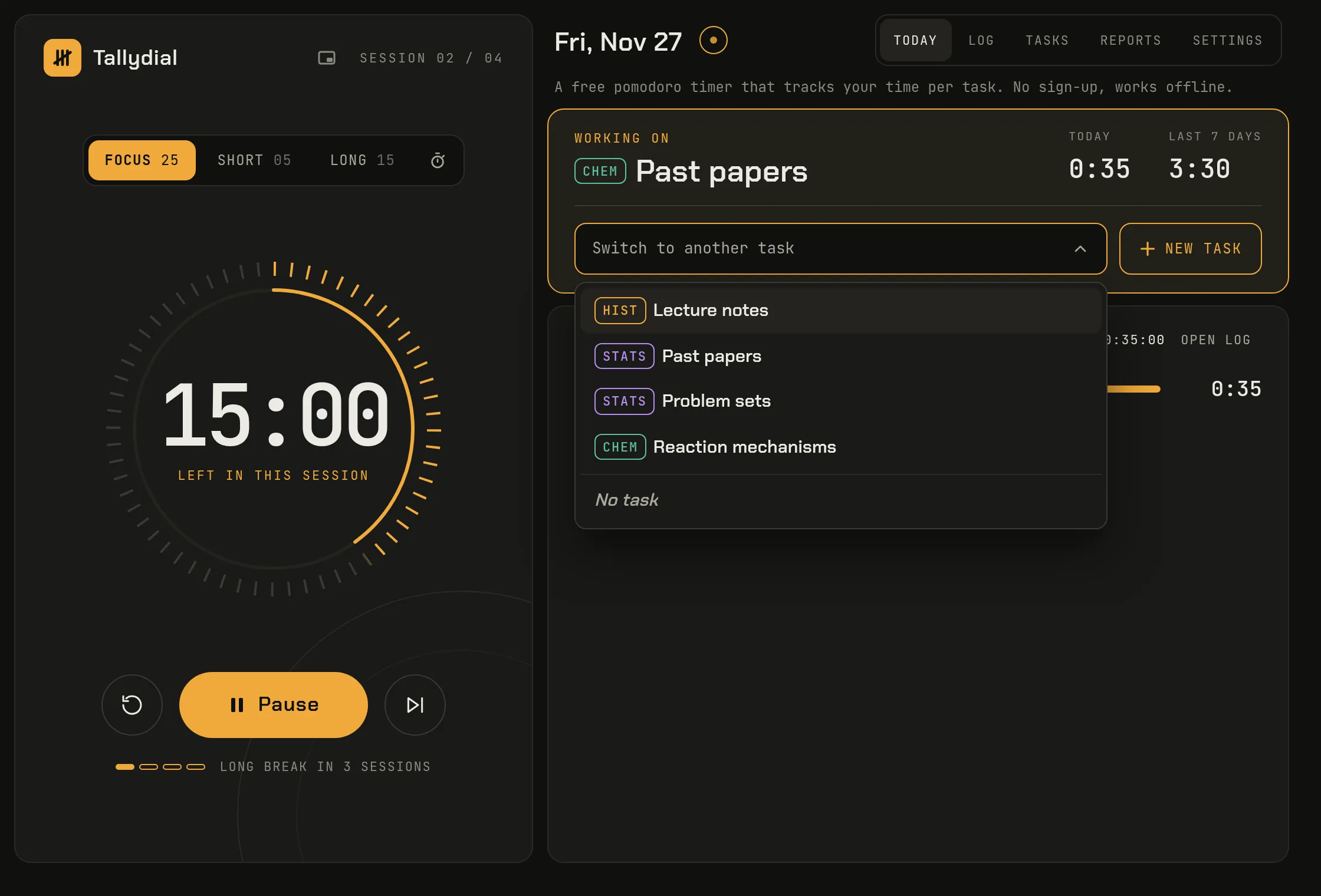
To run it, pick the task in the Working on card with Switch to another task (arrow keys, Enter or a first letter work too), then press Start or the Space bar. The best moment to change subject is the break: nothing is recorded during breaks, so the switch is clean and the next session starts on the right task.
The timer shows where you are in the cycle, such as “Session 02 / 04” and “Long break in 2 sessions”. With the default settings, nothing starts on its own, so a long lunch records nothing; after lunch, press Skip to go past the break left over from session 6 straight to session 7. If you'd rather have breaks and sessions start on their own, Settings has a toggle for each.
If a class or a study group is on the timetable, the stopwatch (the button next to Focus, Short and Long above the dial) records it against a task without a countdown.
What to do in the break (and what to avoid)
A short break is five minutes. Use it to get away from the material, not to fit in more of it:
- Stand up, walk around, get water or a snack.
- Look out of a window instead of at a screen.
- Glance at your plan and, if the next session is a different subject, pick its task now.
Avoid the things that don't end after five minutes:
- Social feeds and group chats. A reply turns into a conversation, and the break into twenty minutes.
- Starting a video. Few of them are five minutes long.
- Flashcards or “one more question”. That is still studying, so you skip the break without noticing.
- Working through the chime because you're mid-thought. Note where you stopped and leave it; it will be easy to pick up again.
In the long break, leave your desk.
Tallydial doesn't block websites or your phone; it only times and records. If your phone is the problem, put it in another room for the session. A sound plays when each phase ends (on by default), and the Alerts card in Settings can add a desktop notification. On a computer, the mini timer button at the top of the timer panel opens a small timer window; in Chrome and Edge it stays on top of your other apps, so the clock stays in view over your notes or a PDF.
Handling a session you cut short or an interruption
Cirillo's original rule is strict: an interrupted pomodoro doesn't count, and you start a fresh one (the Pomodoro Technique guide explains how to handle interruptions). Tallydial keeps your study time either way and only decides what counts as a pomodoro:
- Pause when a short interruption can't wait. The minutes so far are saved on the subject. Resume carries on with the same countdown, and if the session then runs to the end, it still counts as a completed pomodoro.
- Reset or Skip ends the session early. The minutes you studied stay on the subject, but no pomodoro is counted. Skip moves on to the short break.
- Switch task if the interruption is another subject, like a classmate's question about the stats assignment. The time is split between the two tasks and the countdown keeps going; how to track time per task with a pomodoro timer has the details.
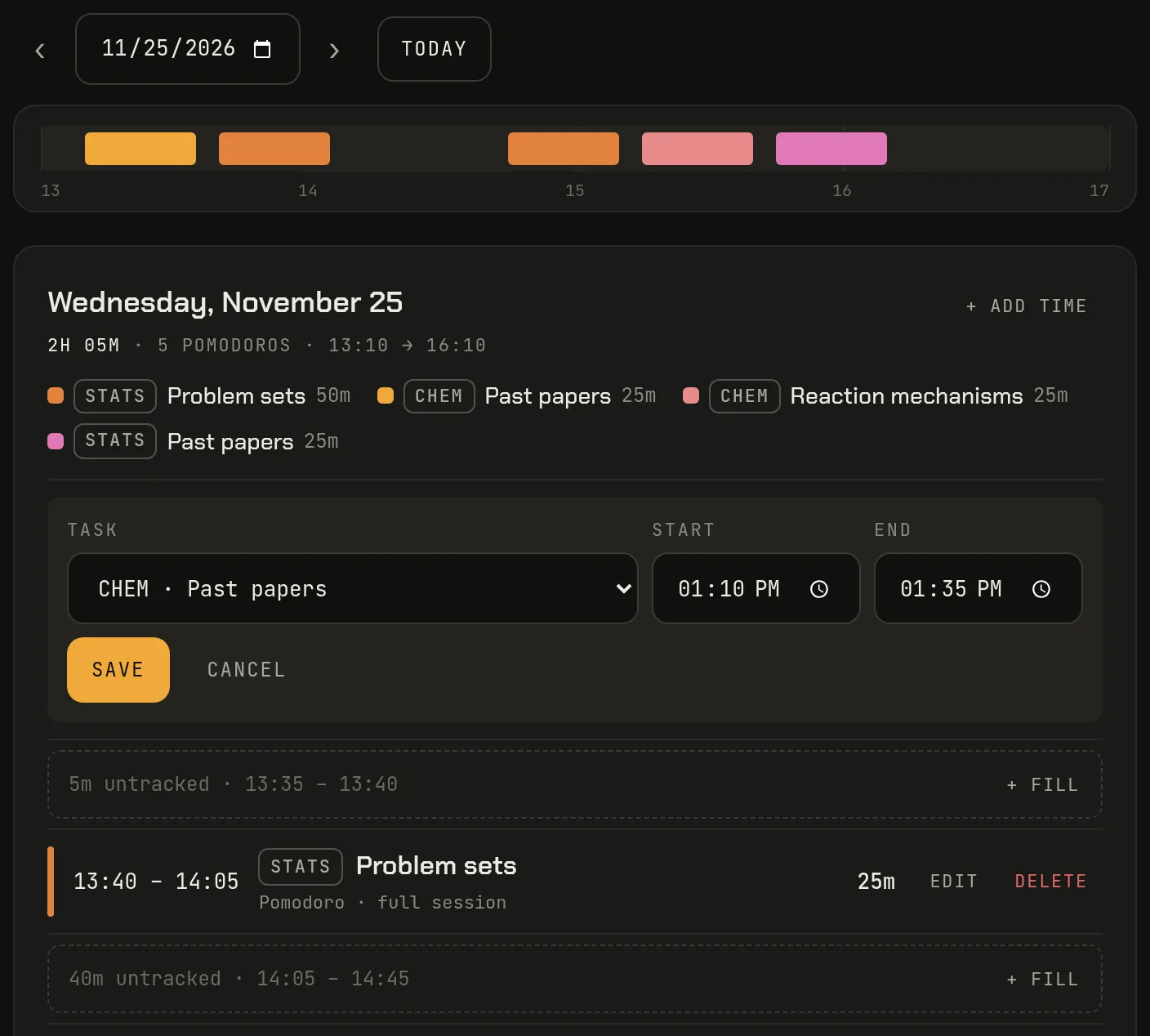
Mistakes are fixed in the day log (Open log on Today), which lists one day's entries from all tasks in order:
- Ran the timer on the wrong subject? Choose Edit on the entry, pick the right Task and Save. A full session stays a completed pomodoro.
- Forgot to start the timer? Untracked stretches between entries show as rows like “40m untracked · 14:05 – 14:45” with a + Fill button that opens a new entry for exactly that gap; + Add time adds one before the first or after the last entry. Time added this way is labeled “Manual” and never counts as a pomodoro.
Check the week: time per subject, are you avoiding one?
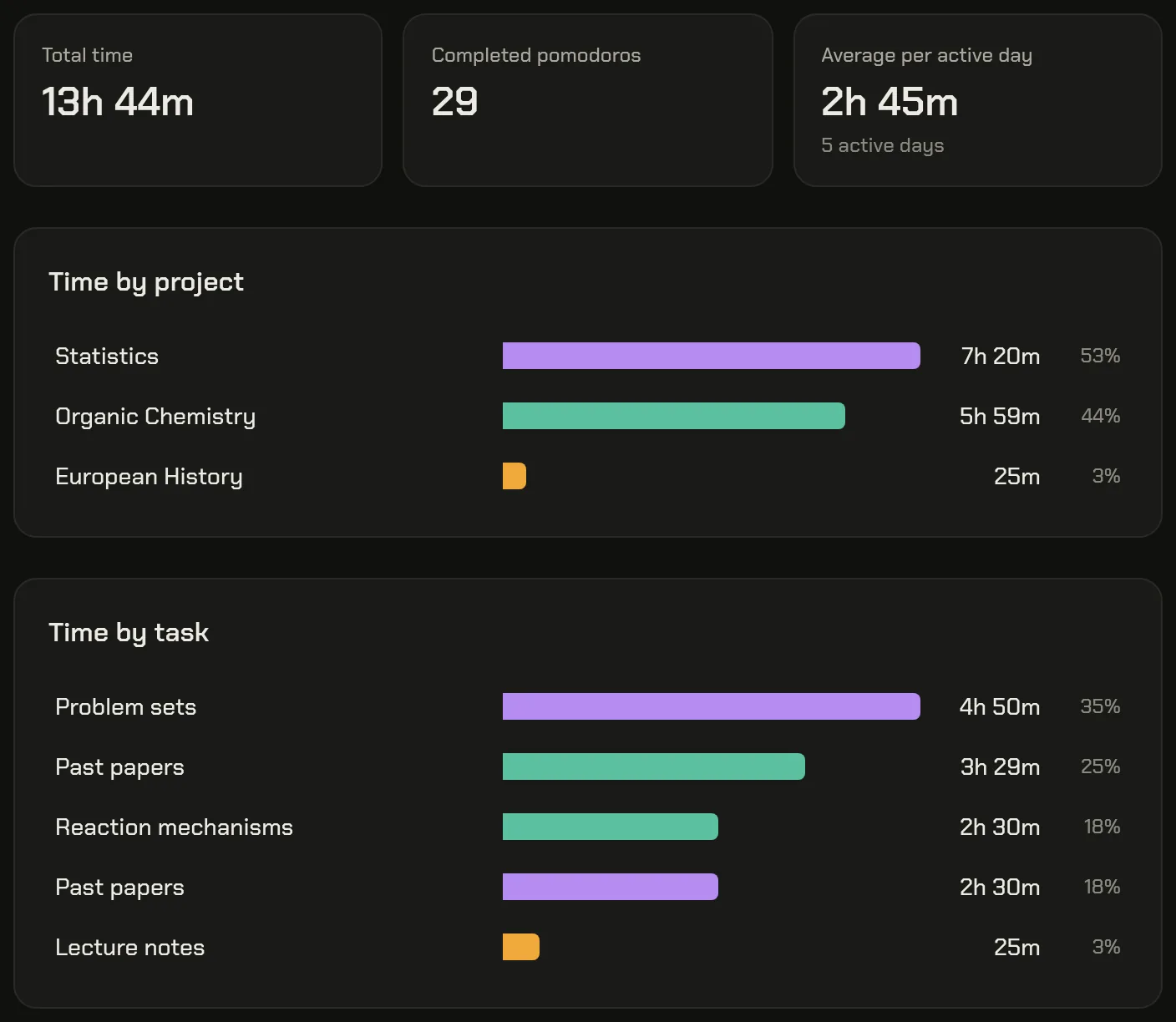
Once a week, say on Sunday evening, open Reports. It starts on the current week, Monday to Sunday:
- Total time, Completed pomodoros and Average per active day sit at the top.
- Time by project shows each course's total and share of the week, by course name (it appears once you have a project).
- Time by task lists every task you studied, longest first, with its time and share. Rows show the task name without the tag; the bar is in the course's color.
Now compare it with what you planned. The question isn't whether the total is big enough, but whether the split matches your priorities. If the exam you worry about most is third on the list, that is the finding.
A subject you avoided doesn't show up as a short bar: it has no row at all, because only tasks with time in the week are listed. Look for the name that's missing. If your courses share task names like “Past papers”, click a course in Time by project first (or pick it in the Project filter): Time by task then lists only that course's tasks.
Click any row to filter the report to it: the totals, the pomodoro count and the chart follow. Compare a subject's time with its Completed pomodoros. Plenty of minutes but few pomodoros usually means sessions end early, or you switch away mid-session (the pomodoro goes to the task you finish on). Stopwatch and manual time never count as pomodoros.
Switch to Month for the longer view: one bar per day, so the days you studied and the ones you didn't stand out. Show table lists the same days as rows, and each day so far links to that day in the day log. The Tasks page also shows every task's time Today, This week and All time, which gives you a term total per subject.
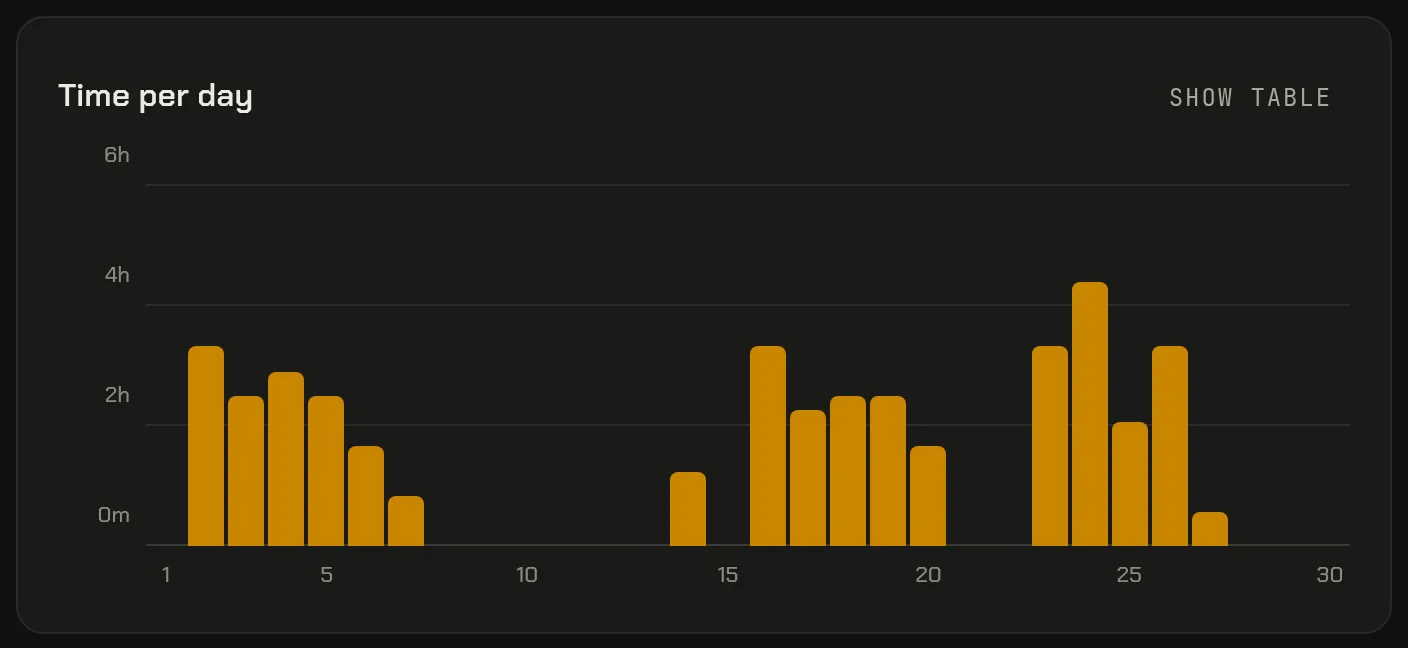
What to do about an avoided subject: put it first in tomorrow's plan. You can also give its task a daily minimum. On the Tasks page, choose Edit on the task, fill in At least under Daily goal (optional) and Save. Today then lists it under Worked on today with how much is left, such as “50m to go”, before you've started on it, and you get a heads-up when you reach it.
Exam-season variant: longer blocks
Close to exams, 25 minutes can be too short: a long proof, an essay plan or a past paper question needs time to get into. That is the moment to try longer blocks, such as 50 minutes of focus and a 10-minute break.
There are no presets. In Settings, type the lengths into Focus session and Short break; changes save as you type and apply from the next phase. How to set up a 52/17 or 50/10 timer walks through it, including how often to take the long break when sessions get longer.
To sit a past paper under exam timing, set Focus session to the paper's length (up to 180 minutes) and run it as one session: for a two-hour paper, the clock starts at 2:00:00.
Two things to keep in mind when you compare weeks:
- A 50-minute session counts as one pomodoro, the same as a 25-minute one, so compare time per subject, not pomodoro counts.
- The report doesn't record which lengths you used, so note the date you switched.
When exams are over, Restore defaults (25 / 5 / 15, every 4) takes you back to the classic setup.
Set up this week's subjects
You don't need the whole term mapped out. Try it as your study timer for one week: add the three or four subjects you're working on, pick one before each session, and open the week report on Sunday.
Tallydial is free, needs no account, and keeps your data in this browser on this device. It doesn't sync between your laptop and a library computer, so track on one of them, and use Export backup (JSON) in Settings now and then. Open the timer and add your first subject.