How to Track Time per Task with a Pomodoro Timer
You already work in pomodoros. The timer rings, you take a break, you start again. At the end of the week, though, you can't say how many of those sessions went to the client project and how many went to email. This guide shows how to use a pomodoro time tracker so that every focus minute lands on a task, and how to read the result. The examples use Tallydial, a free pomodoro timer that records time per task in your browser. If you're new to the method itself, start with the Pomodoro Technique guide.
Why a plain timer doesn't tell you where the hours went
A timer knows how long the current session is and how much of it is left. When it rings, that information is gone. Tally marks on paper count sessions, but they don't say what you worked on, and they skip the session you abandoned after 15 minutes to take a call.
To know where the hours went, each stretch of focus time needs three facts: which task it was for, when it started and when it ended. With those, you can answer questions like: how much did the report take this week? Which project got nothing on Thursday?
A pomodoro time tracker records those facts as a side effect of running the timer. You don't fill in a timesheet afterwards; you pick a task before you press Start.
Set up tasks (and project tags) before you start
Spend five minutes on this once and the reports will be readable from day one.
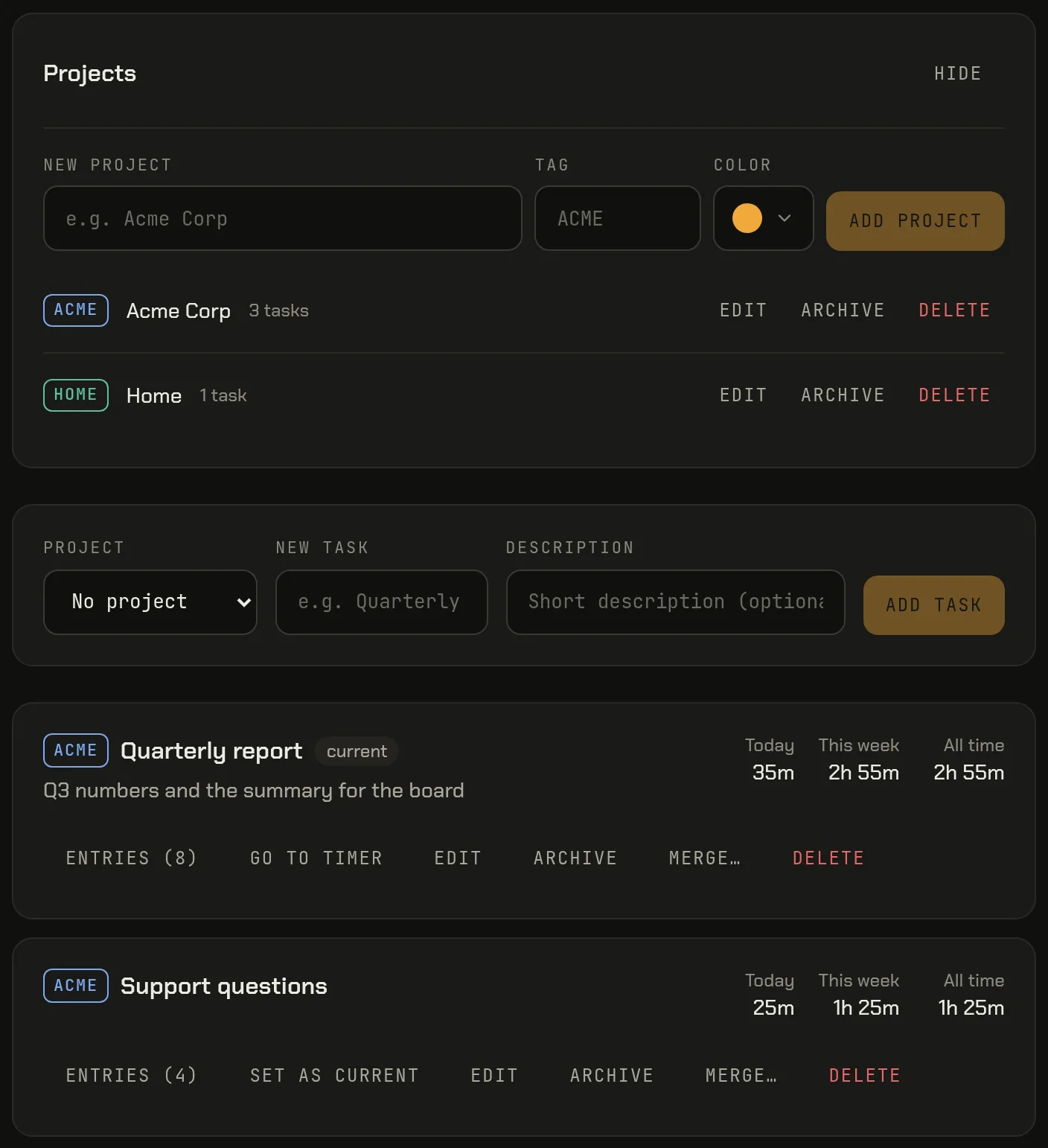
Open the Tasks page. A task is what you'll pick before a session: “Quarterly report”, “Code review”, “Spanish vocabulary”. Type a name in the New task field, add a short description if it helps, and press Add task.
If your tasks belong to bigger groups, such as clients, courses or a side project, create a project first. In the Projects card, choose Add a project (Manage once you have one), then give it a name, a short tag (up to eight characters, shown in capitals, like ACME) and a color. Leave the tag empty and the first word of the project name is used. Then pick that project in the Project field when you add a task.
The tag appears as a colored badge in front of the task name on Today and the Tasks page, so “ACME Quarterly report” and “HOME Quarterly report” stay distinct. Rename a project or change its tag and every task in it updates at once.
Two tips: name tasks by the outcome (“Landing page copy” reads better in a report than “Writing”), and don't create a task per day. One task collects time across days, and the reports split it by day for you.
Run a session: pick the task, start, and what gets recorded
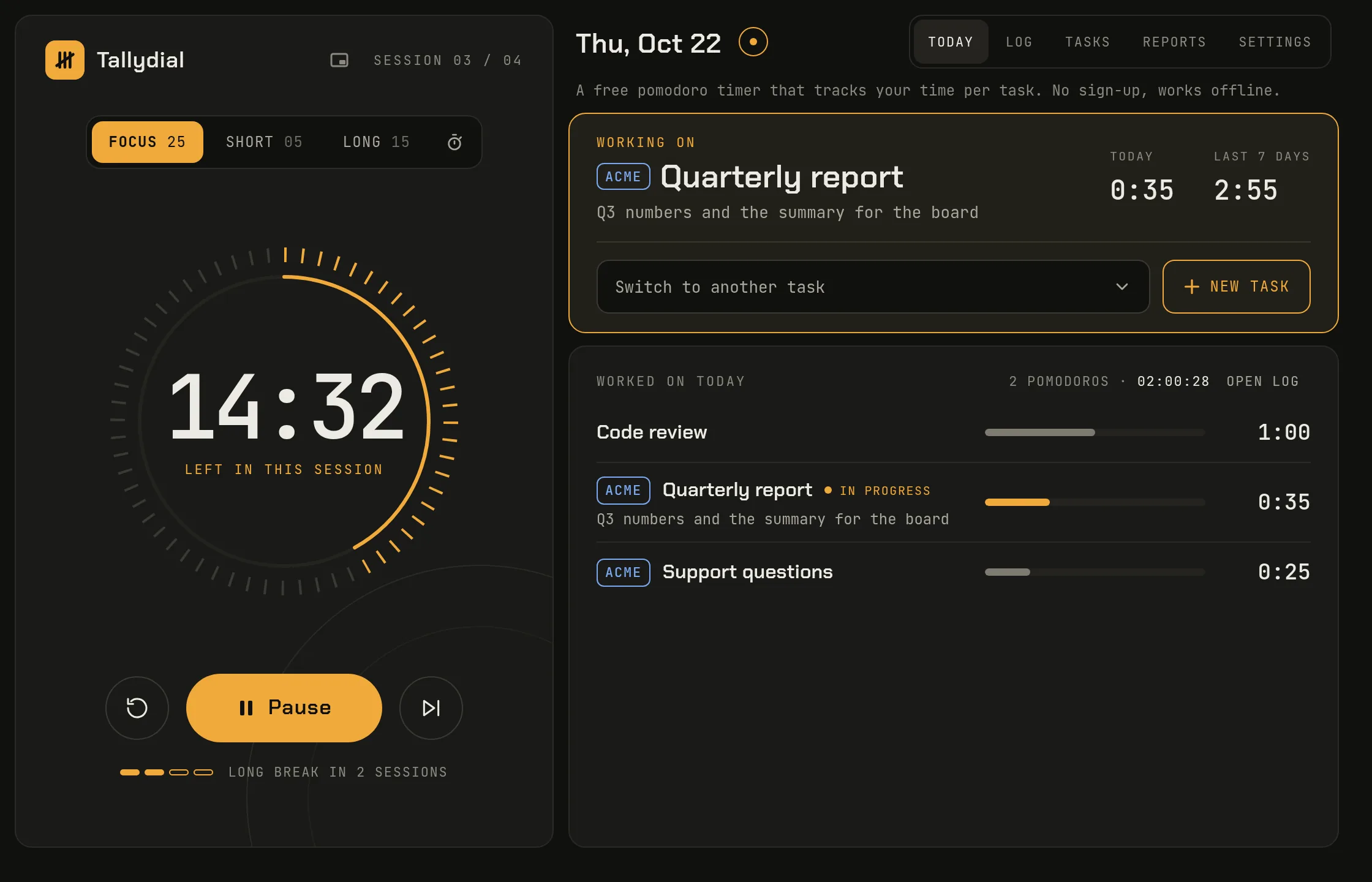
On the home page, the Working on card shows the current task. Use Switch to another task to pick one (it works from the keyboard too: arrow keys, Enter, or type a first letter). If the task doesn't exist yet, New task adds it and selects it in one step.
Press Start, or the Space bar. That's all.
While the focus session runs, its time is recorded against the task you picked. A few details matter for the numbers you'll see later:
- Only focus time is tracked. Short and long breaks are not recorded as work.
- Pausing keeps what you did. Pause, and the time so far is saved as an entry; resume, and a new one starts. If the session then runs to the end, it still counts as a completed pomodoro.
- Stopping early keeps the time, but not the pomodoro. If you reset or skip a focus session, the minutes you worked stay on the task.
- No task selected still counts. That time is recorded as “No task”, and you can assign it later.
Below, Worked on today lists each task with its time today; the header shows the day's total and how many pomodoros you completed. The Working on card also shows the current task's time today and over the last seven days.
The countdown follows the clock, so it stays correct in a background tab and survives a reload. Session lengths, sounds and desktop notifications are in Settings.
Switching task mid-session (the time is split, not lost)
Real sessions don't always stay on one task. Halfway through writing, a colleague needs an answer on another project.
You don't have to stop the timer. Pick the other task with Switch to another task while the session runs. The time up to that moment is saved on the first task, and recording continues on the new one. The countdown keeps going; nothing restarts.
So a 25-minute session that was 15 minutes of “Quarterly report” and 10 minutes of “Support questions” shows up as exactly that: two entries, 15 and 10 minutes, on two tasks.
One thing to know: the completed pomodoro is counted once, for the task you were on when the session finished. The minutes are split; the pomodoro is not divided into fractions. If you want clean pomodoro counts per task, switch at session boundaries and save mid-session switching for interruptions you can't avoid.
Pomodoro vs stopwatch mode for open-ended work
Some work doesn't fit a countdown: a long debugging session, a meeting, a call that runs as long as it runs. For those, choose the stopwatch button next to Focus, Short and Long above the dial.
The clock then counts up. Time is recorded against the selected task as in a focus session, you can pause, resume and switch tasks, and Stop ends it and keeps the time.
In the reports, stopwatch time counts toward a task's hours but never as a completed pomodoro, because there was no session to complete. That keeps the pomodoro count an honest measure of focus sessions.
A reasonable split: pomodoros for work you want to protect from interruptions, the stopwatch for work whose length isn't up to you. Both land on the same task, so the weekly total is complete either way.
Reading the week report
Open Reports. It starts on the current week, Monday to Sunday. Use the arrows to go back, or switch to Month or Year.
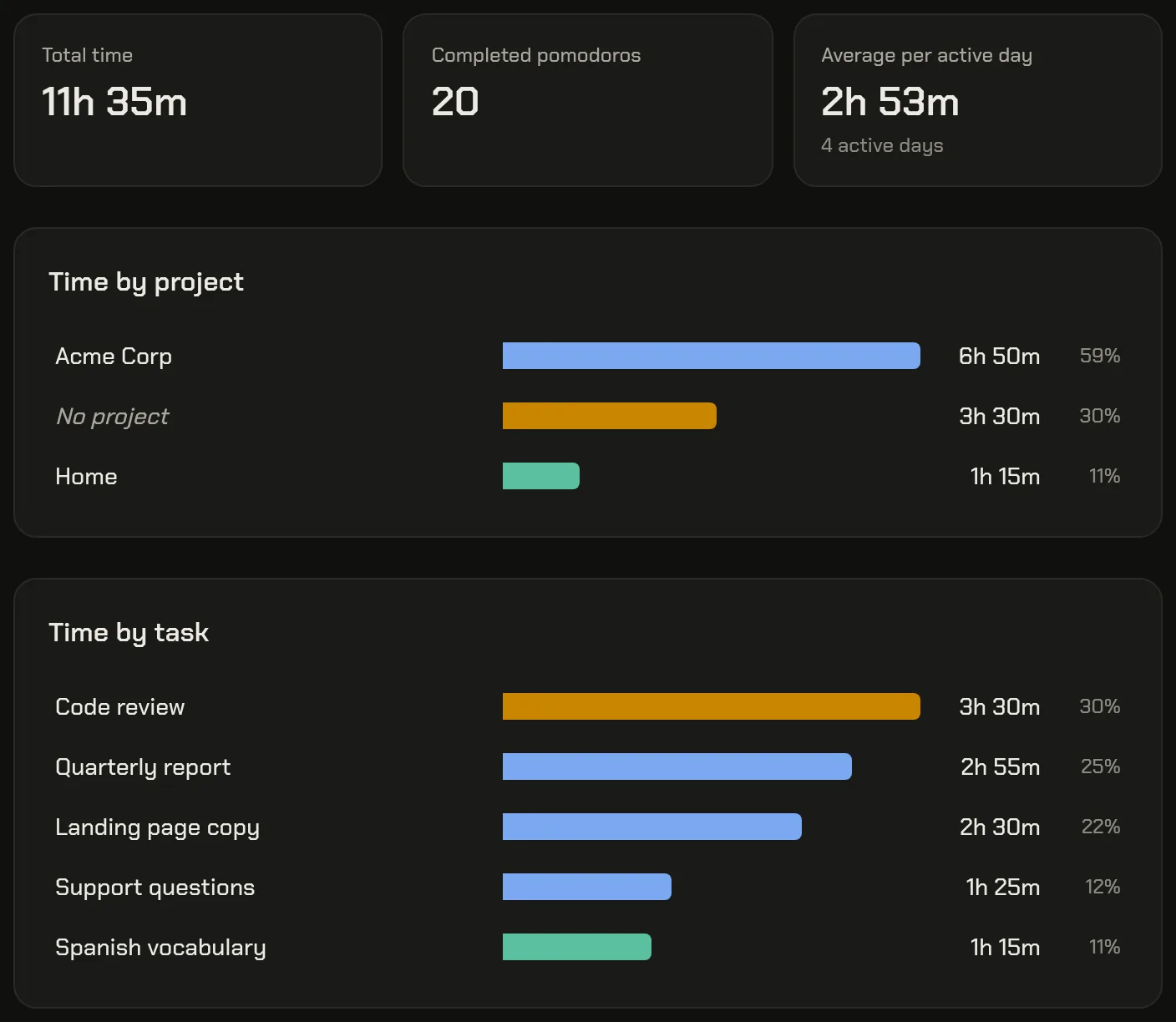
At the top are three numbers:
- Total time: everything tracked in the week.
- Completed pomodoros: full work sessions that ran to the end.
- Average per active day: the total divided by the days you tracked anything.
Below, Time by task lists every task you tracked time on, with its time and share of the week, longest first; with projects, Time by project sits above it. Click a row to filter the report to that task or project: the totals, the pomodoro count and the chart follow.
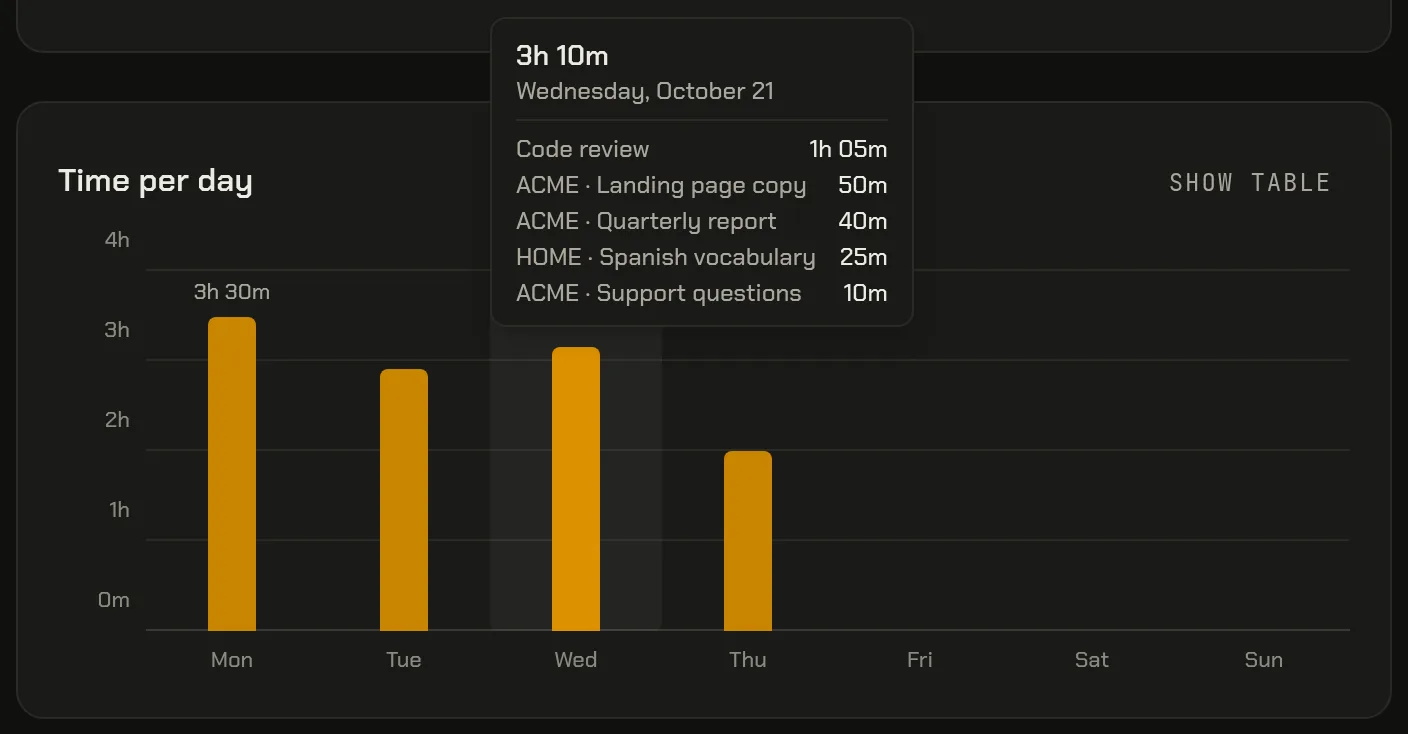
The Time per day chart has one bar per day. Hover over a bar, or reach it with the keyboard, to see the day's total and the tasks behind it. Show table lists the same days as rows, and each day so far links to that day in the day log. Export CSV downloads the week as one row per task per day.
Look for the task at the top you didn't expect there, the task you meant to work on that is missing, and the days with no bar at all.
Fixing mistakes: edit times in the day log, merge duplicate tasks
A report is only as good as the record behind it. Sometimes you forget to switch task, leave the timer off for a meeting, or create “Bug fixes” on Monday and “bugfixes” on Wednesday.
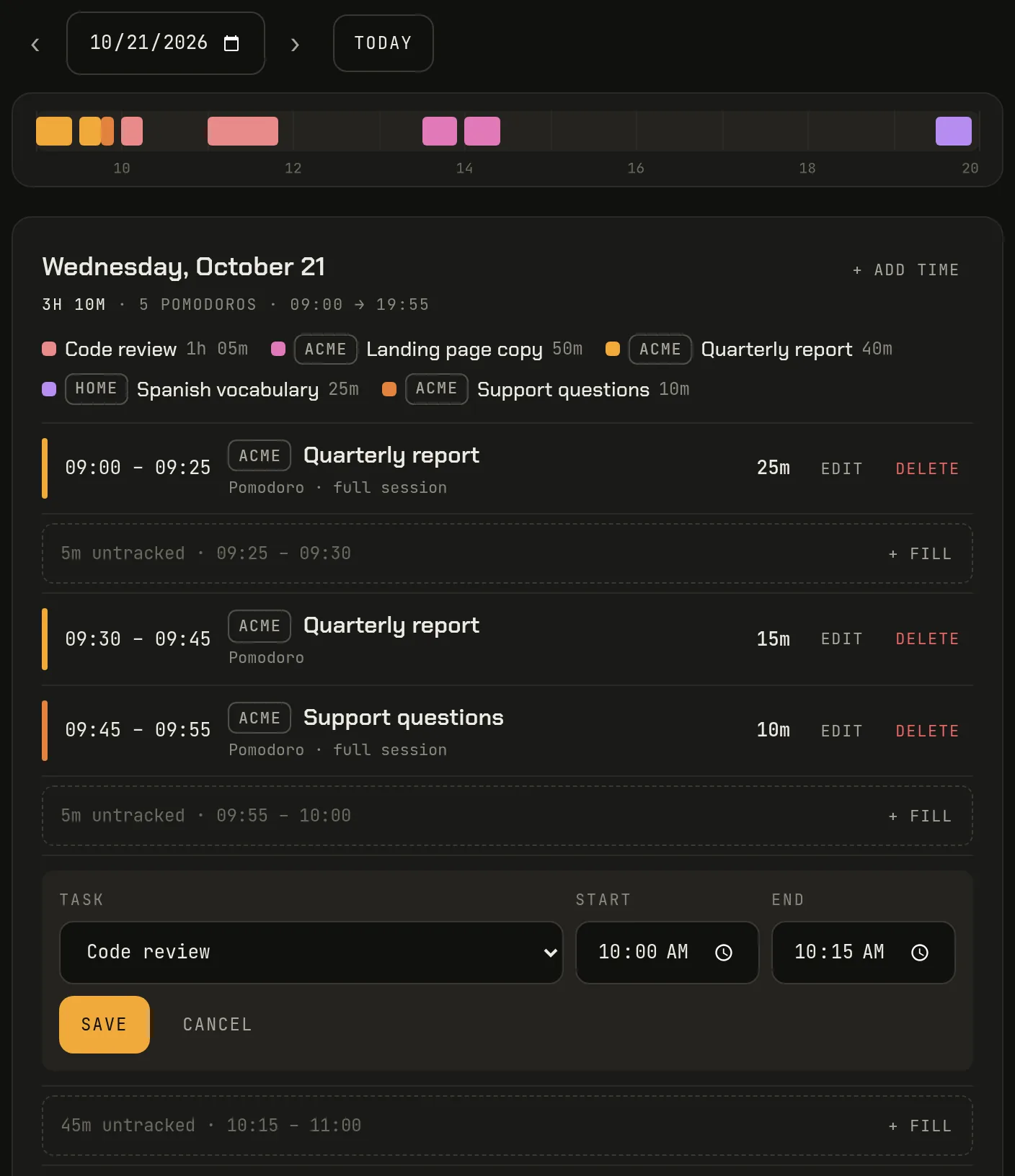
The day log. Open Log, or Open log from Today. It shows one day's entries from all tasks in order, under a timeline bar. Edit an entry in place: change its task, start or end, and save. This is also where “No task” time gets its task: edit the entry and pick the right one.
Untracked stretches between entries appear as rows like “45m untracked · 10:15 – 11:00” with a Fill button that opens a new entry for exactly that gap, and Add time adds one before the first or after the last entry.
If two entries overlap, the log flags it and shows how much time is counted twice; for a partial overlap, one click ends the earlier entry where the later one starts.
Merging duplicate tasks. On the Tasks page, a task whose name matches another in the same project, ignoring case, spaces and punctuation, shows a hint like Same name as “Bug fixes” with a Merge… button. You can also merge any task into any other with Merge… on its card. Merging moves all of its time entries to the task you choose and removes the duplicate, so nothing is lost and the report adds up under one name. A running timer on the merged task carries on, now on the target, and an Undo button appears right after the merge.
Start with one week
You don't need a perfect setup. Add the three or four tasks you'll touch this week, pick one before each session, and open the week report on Friday. One real week tells you more than any estimate.
Tallydial is free, needs no account, and keeps your data in your browser on this device. Open the timer and pick your first task.